Custom Commands
Create your own prefix-based commands with custom text or embed responses.
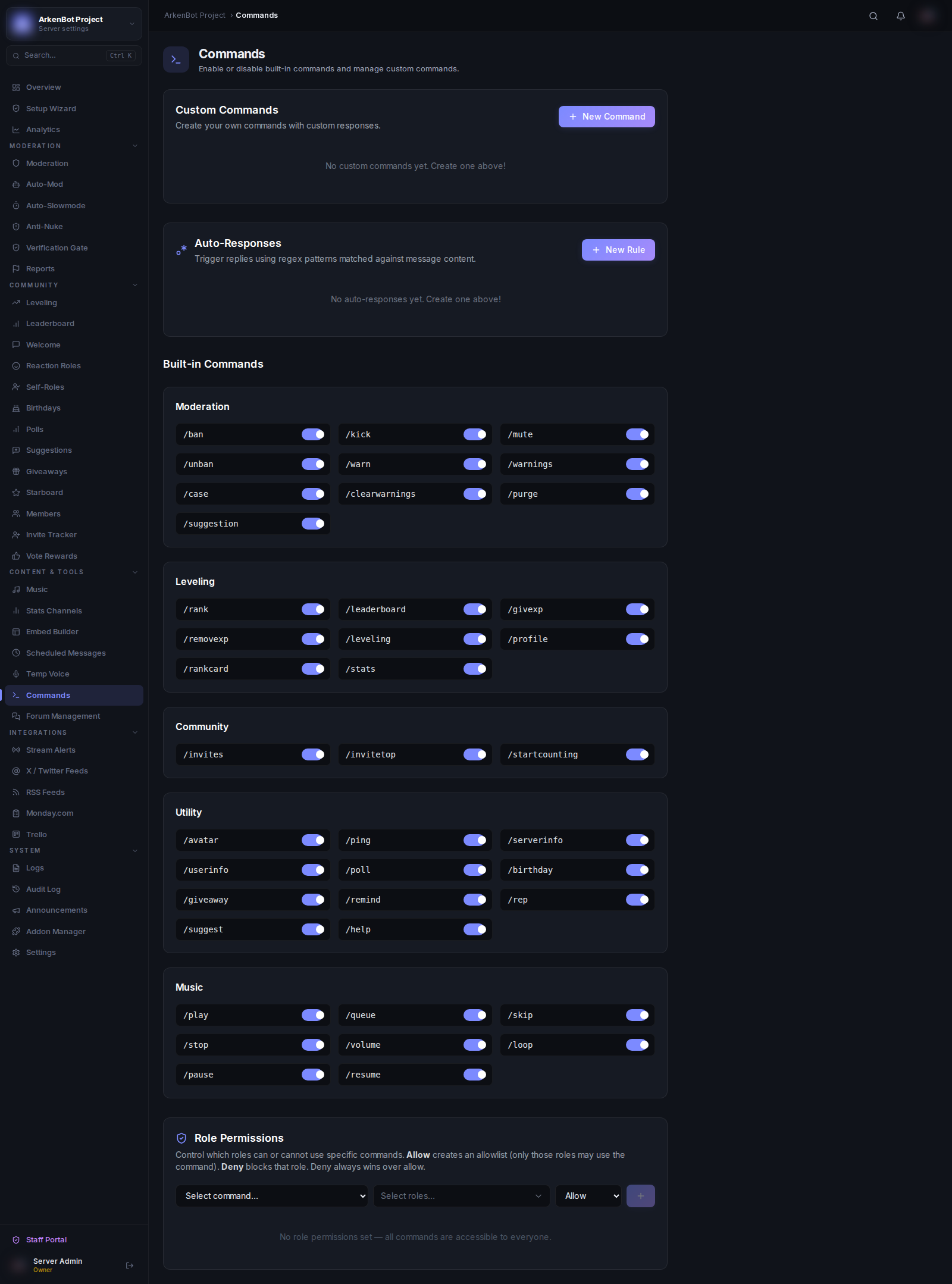
Overview
Custom commands let you define commands that members can trigger using the server prefix (!). Responses can be plain text or styled embeds, and each command supports aliases, cooldowns, role restrictions, and more.
Custom commands are managed from Commands in the dashboard sidebar.
Creating a Custom Command
- Go to Commands in the sidebar
- Click New Command in the Custom Commands section
- Fill in the form and click Create Command
Fields
| Field | Required | Description |
|---|---|---|
| Command Name | Yes | The trigger word (e.g. rules → members type !rules). Lowercase, no spaces. |
| Aliases | No | Comma-separated alternative triggers (e.g. rule, r). Each alias works identically to the main name. |
| Response | Yes | The text the bot replies with. Supports template variables (see below). |
| Send as Embed | No | Wrap the response in a Discord embed instead of sending it as plain text. |
| Embed Title | No | Optional title shown above the embed body. Only visible when Send as Embed is on. |
| Embed Color | No | Hex color for the embed accent bar (default: Discord Blurple #5865F2). Only visible when Send as Embed is on. |
| Cooldown | No | Seconds a user must wait before triggering the command again (0 = no cooldown, max 3600). |
| Delete invoking message | No | Automatically deletes the member's message that triggered the command. |
| DM response to user | No | Sends the response directly to the triggering member's DMs instead of the channel. |
Template Variables
Use these placeholders in the Response field — they are replaced with live values when the command is used:
| Variable | Replaced with |
|---|---|
{user} | Mention of the member who used the command |
{username} | Member's username |
{displayname} | Member's display name (nickname if set, otherwise username) |
{server} | Server name |
{count} | Current member count |
{channel} | Mention of the channel where the command was used |
{boosts} | Number of server boosts |
Example:
Welcome {user}! {server} now has {count} members.
Managing Commands
All custom commands appear in a table showing:
- Command name and aliases
- Response preview
- Active options (embed, DM, delete, cooldown)
- Total use count
- Enabled/disabled toggle
- Delete button
Enabling and Disabling
Use the toggle in the Enabled column to temporarily disable a command without deleting it.
Deleting a Command
Click the trash icon on the right side of a command row. Deletion is immediate.
Notes
- Command names are always stored and matched in lowercase
- Custom commands use the server's prefix (
!by default) — they are not Discord slash commands - Members with server Administrator permission can always use any command regardless of restrictions
- The use count increments each time the command is successfully triggered
- Custom commands appear in the built-in
/helplist alongside native bot commands