Music
Play audio from YouTube, Spotify, SoundCloud, and more directly in voice channels.
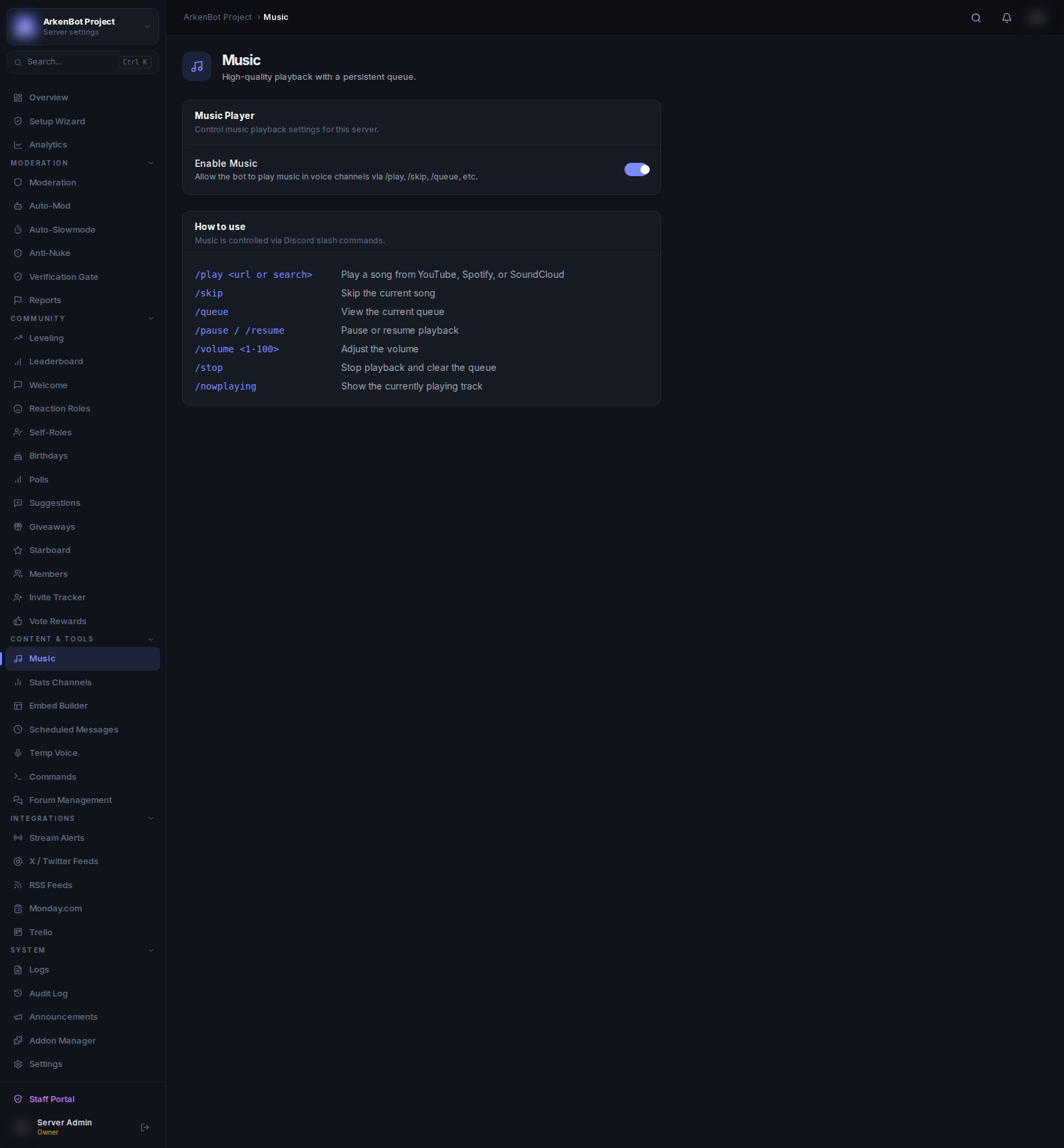
Setup
- Go to Settings
- Ensure Music is enabled (it is on by default)
Or go to Music in the sidebar and toggle Enable Music.
Commands
All music controls are slash commands used in Discord:
| Command | Description |
|---|---|
/play <url or search> | Play a song or add it to the queue. Accepts YouTube URLs, Spotify links, SoundCloud links, or search terms |
/skip | Skip the current track |
/queue | View the current queue |
/pause | Pause playback |
/resume | Resume playback |
/volume <1-100> | Adjust the playback volume |
/stop | Stop playback and clear the queue |
/nowplaying | Show the currently playing track with progress bar |
Notes
- The bot must be in a voice channel before playing. Join a voice channel first, then use
/play. - Only one queue exists per server at a time.
- If the bot is alone in a voice channel for an extended period, it will automatically disconnect.
- Disabling music via the dashboard immediately blocks all music commands for non-admin members.