Temporary Voice Channels
ArkenBot can automatically create and delete personal voice channels on demand using Join-to-Create trigger channels. You can configure multiple triggers, each optionally routing created channels into a specific category.
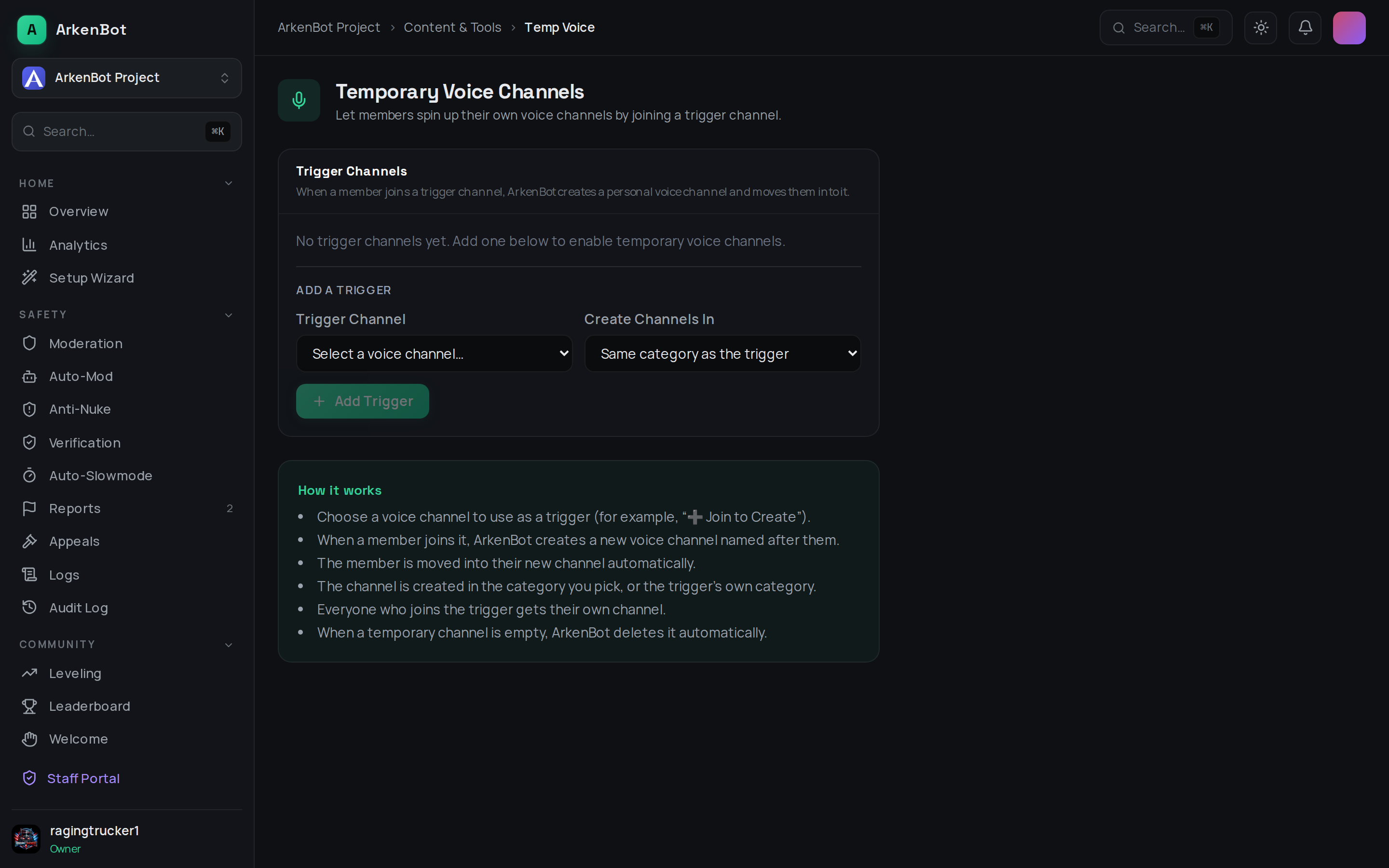
Setup
- Go to Dashboard → Temp Voice (under Tools in the sidebar)
- Under Add Trigger Channel, select a voice channel from the Trigger Voice Channel dropdown — members will join this to get their own channel
- Optionally select a Target Category to control where the created channels appear
- Click Add Trigger
- Repeat to add as many trigger channels as you need
Name your trigger channels something obvious, like ➕ Create Channel or 🎙 Join to Create.
The bot needs Manage Channels and Move Members permissions in your server.
How It Works
- A member joins any configured trigger channel
- The bot instantly creates a new voice channel named
{Member}'s Channel - The new channel is placed in the Target Category if one was set, otherwise it's placed in the same category as the trigger channel
- The member is moved into their new channel automatically
- When the channel becomes empty, the bot deletes it automatically
Multiple Triggers & Categories
You can set up several Join-to-Create flows in the same server. Common patterns:
- Gaming vs. Chill — one trigger in a Gaming category, another in a Chill category, each routing created channels into their own section
- Staff-only rooms — a trigger visible only to staff that creates channels in a private category
- Per-language — separate triggers for different communities, each landing in its own category
Each trigger is listed on the dashboard with its target category. Click the trash icon next to any trigger to remove it.
Owner Permissions
The member who triggered the channel creation becomes its owner and receives:
- Manage Channel — rename it, set a user limit, adjust permissions
- Move Members — drag other members in or out
Everyone else in the server can view and join the channel by default.
Removing a Trigger
To remove a trigger, go to Dashboard → Temp Voice and click the trash icon next to the trigger you want to remove. Removing a trigger does not delete any active channels that were already created from it — those will be cleaned up automatically when they become empty.
Tips
- Place trigger channels at the top of their category so they're easy to find
- Members can rename their channel via Discord's native channel settings (right-click → Edit Channel)
- Channels are deleted as soon as the last person leaves — they are never left orphaned
- Use a Target Category to keep auto-created channels separate from your permanent channels