Stats Channels
Display live server statistics in voice channel names that update automatically.
Setup
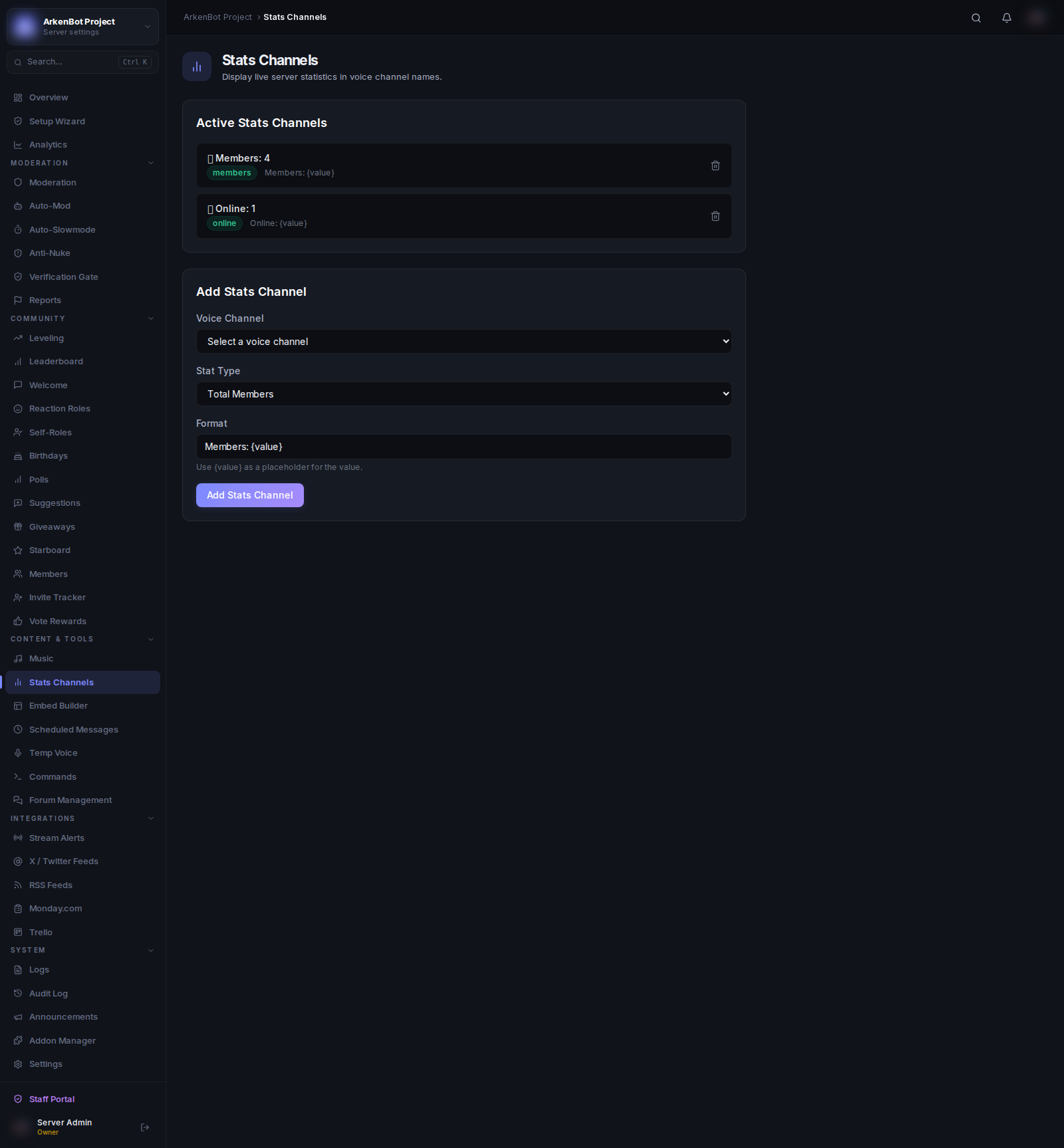
Go to Stats Channels in the sidebar.
How It Works
The bot renames a voice channel with the latest stat value at regular intervals. Because voice channels can't be used for text chat when named this way, create dedicated voice channels just for stats display.
Stat Types
| Type | What It Shows |
|---|---|
| Total Members | Current total member count |
| Online Members | Members currently online |
| Server Boosts | Number of active boosts |
| Bots | Number of bots in the server |
Creating a Stats Channel
- Create a voice channel in Discord (e.g.
📊 Members: 0) - In the dashboard, click Add Stats Channel
- Select the voice channel
- Choose the Stat Type
- Customize the Format — use
{value}as a placeholder for the live number - Click Add Stats Channel
Format Examples
| Format | Result |
|---|---|
Members: {value} | Members: 1,234 |
👥 {value} Members | 👥 1,234 Members |
🟢 Online: {value} | 🟢 Online: 87 |
🚀 Boosts: {value} | 🚀 Boosts: 14 |
Managing Stats Channels
Click the trash icon next to any entry to remove the stats tracking. The voice channel itself is not deleted — only the automatic renaming stops.
Notes
- The bot requires Manage Channels permission.
- Discord rate-limits channel name updates to roughly 2 per 10 minutes per channel.
- You can have multiple stats channels — one per stat type.