Embeds
Create, save, and send richly formatted Discord embeds from the dashboard.
Setup
Go to Embeds in the sidebar.
Creating an Embed
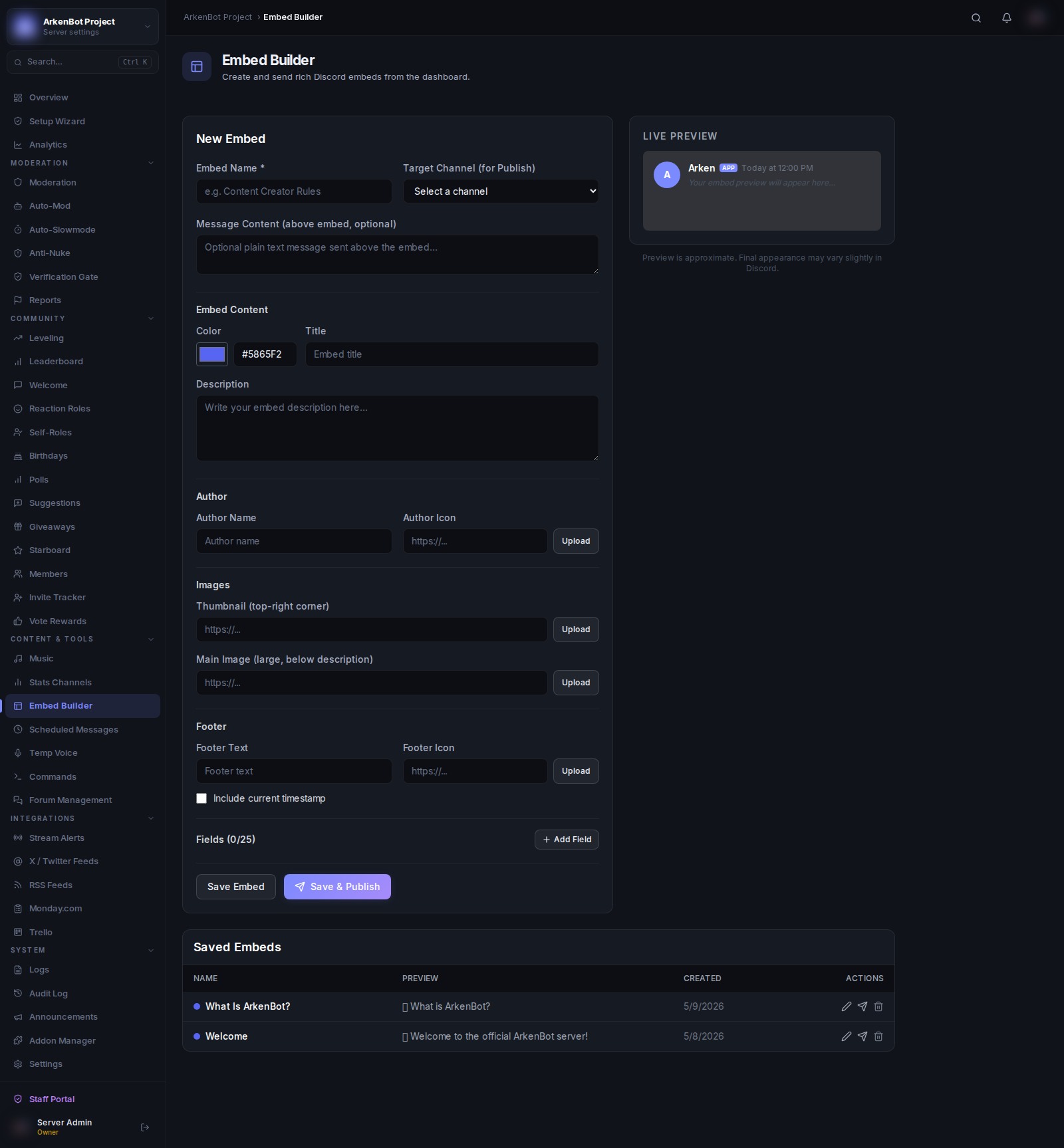
Click New Embed and fill in the builder:
Message Content
Optional plain text that appears above the embed (useful for mentions like @here).
Embed Fields
| Field | Description |
|---|---|
| Name | Internal label to find the embed in the list |
| Title | Bold title text at the top of the embed |
| Description | Main body text (supports Discord markdown) |
| Color | Accent color on the left border (hex code) |
| Author Name | Small text shown above the title |
| Author Icon URL | Small image next to the author name |
| Author URL | Makes the author name a clickable link |
| Thumbnail URL | Small image in the top-right corner |
| Image URL | Large image at the bottom of the embed |
| Footer Text | Small text at the very bottom |
| Footer Icon URL | Small image next to the footer text |
| Timestamp | Adds the current date/time to the footer |
Embed Fields (inline blocks)
Click Add Field to add name/value pairs inside the embed body. Toggle Inline to display multiple fields side by side.
Saving vs Sending
- Save — Stores the embed for later use. Saved embeds appear in the list on the left.
- Send — Pick a channel and send the embed immediately to Discord.
Editing a Saved Embed
Click the edit (pencil) icon on any saved embed to load it back into the builder. Make changes and save or send again.
Deleting an Embed
Click the trash icon next to a saved embed to permanently remove it.
Tips
- Use
{value}placeholders in text fields if you're building templates. - Thumbnails work best as square images; the main image appears full-width.
- You can send the same saved embed to different channels at any time without re-creating it.