Forum Management
ArkenBot can automate actions in Discord forum channels — posting a template message whenever a new thread is created and automatically applying a tag to it.
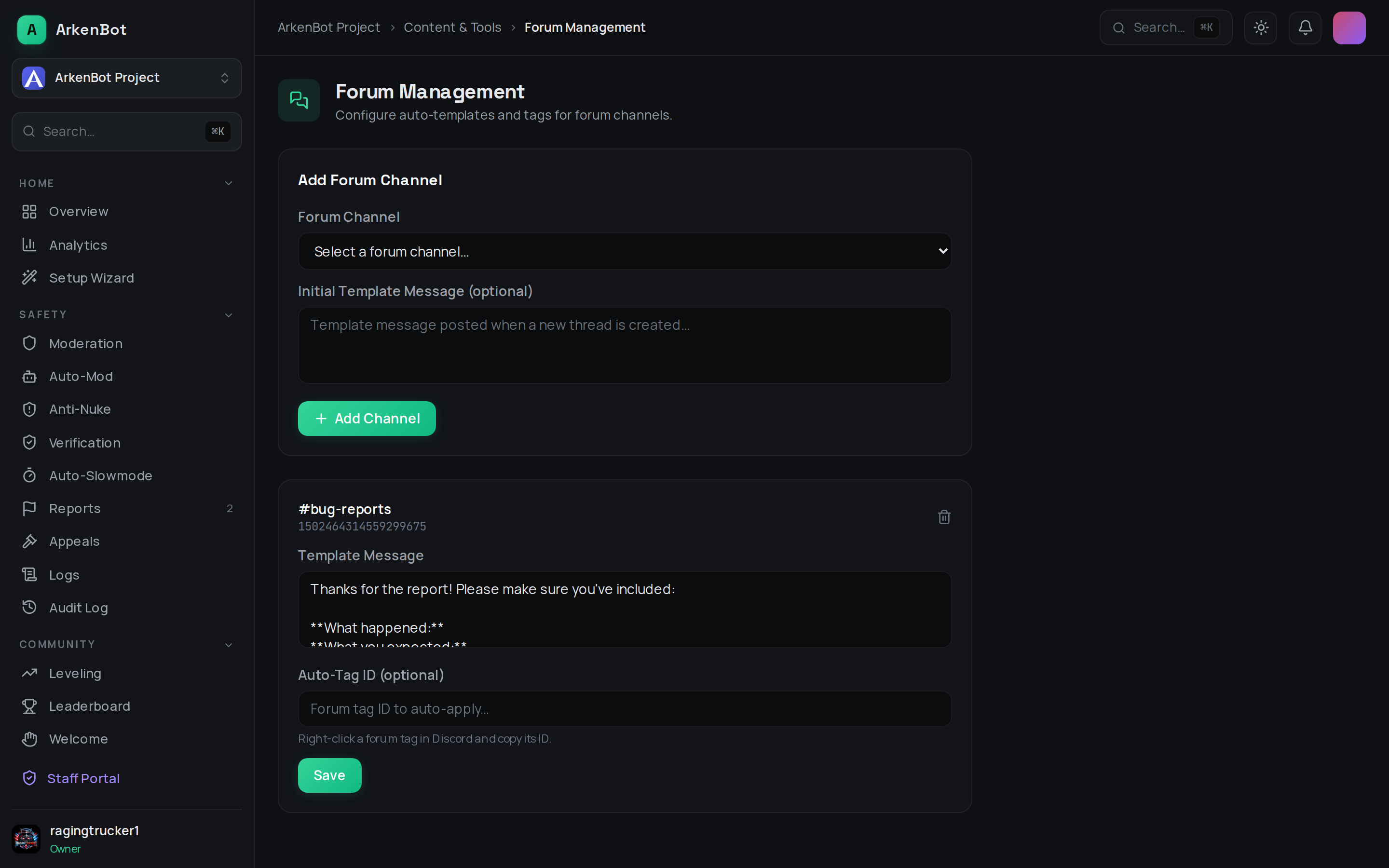
Setup
- Go to Dashboard → Forum Management (under Tools in the sidebar)
- Click Add Forum Channel and select a forum channel from the dropdown
- Optionally enter a Template Message — this is posted by the bot as the first reply in every new thread
- Optionally enter an Auto-Tag ID to automatically apply a forum tag to every new thread
- Click Add Channel
You can configure multiple forum channels independently.
The bot needs Send Messages and Manage Threads permissions in each forum channel.
Template Messages
The template message is posted by the bot as a reply whenever a new thread is created. Use it to:
- Remind posters of rules or formatting requirements
- Provide a checklist (e.g. "Please include your platform, version, and steps to reproduce")
- Welcome the thread author with useful links
Auto-Tag
The Auto-Tag automatically applies a forum tag to every new post. To find a tag's ID:
- Enable Developer Mode in Discord (User Settings → App Settings → Advanced)
- Right-click the tag in the forum channel and select Copy Tag ID
Paste the ID into the Auto-Tag field on the dashboard.
Managing Configured Channels
Each configured channel is listed on the dashboard. You can:
- Edit the template message or auto-tag ID and click Save
- Click the trash icon to remove a channel from management
Tips
- Leave the template message blank if you only want auto-tagging, and vice versa
- You can use Discord markdown in the template message (bold, bullet lists, links)
- Changes apply to new threads only — existing threads are not affected