Reaction Roles
Let members self-assign roles by reacting to an embed in any channel.
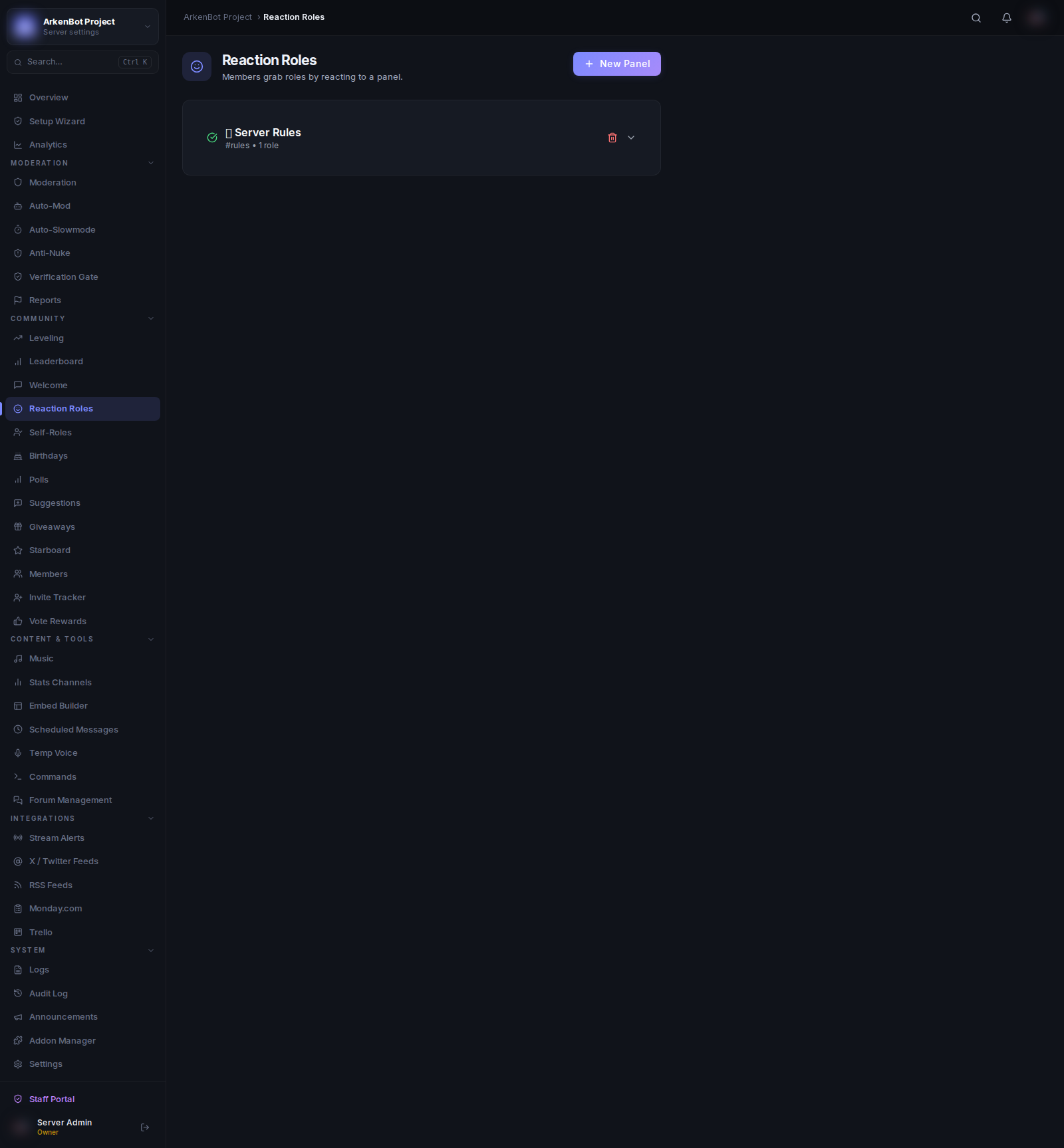
Setup
Go to Reaction Roles in the sidebar.
How It Works
ArkenBot posts a styled embed (a panel) in a channel of your choice. When a member reacts with the assigned emoji, they receive the corresponding role. Each panel can hold multiple emoji↔role pairs.
Creating a Panel
- Click New Panel
- Set the Channel where the embed will be posted
- Set the Title and Description for the embed
- Click Create & Deploy
The bot immediately posts the embed and marks the panel as Deployed (green checkmark). A clock icon indicates the panel is pending deployment.
Adding Roles to a Panel
Once a panel is created, expand it by clicking on it and use the Add a role form:
| Field | Description |
|---|---|
| Emoji | The emoji members react with (e.g. ✅, 🔴) |
| Role | The role to assign |
| Behaviour | How the role is assigned (see below) |
Role Behaviour Options
| Option | What It Does |
|---|---|
| Toggle (add + remove) | Reacting adds the role; removing the reaction removes the role |
| Add only | Reacting adds the role; removing the reaction does nothing |
| Remove only | Reacting removes the role if the member has it |
Click Add Role to apply. The embed in Discord updates automatically.
Managing Panels
- Edit title/description — Expand the panel, update the fields, and click elsewhere to save (auto-saves on blur)
- Remove a role — Expand the panel, click the trash icon next to the role entry
- Delete a panel — Click the trash icon in the panel header. The embed and all reactions are removed from Discord
Tips
- Use Add only with mutually exclusive roles so members can't remove a role they shouldn't be without.
- Keep panel descriptions concise — they appear directly in the embed.
- Ensure the bot's role is above the roles it needs to assign in your server's role hierarchy (Server Settings → Roles).