Verification Gate
The Verification Gate requires new members to click a verify button before they can access the rest of your server. It's the simplest way to filter out bots and confirm members have read your rules.
How It Works
- A new member joins and is automatically assigned the Pending Role
- The Pending Role restricts them to seeing only the Verify Channel
- They click the verify button in that channel
- The bot removes the Pending Role and assigns the Member Role, granting full access
Setup
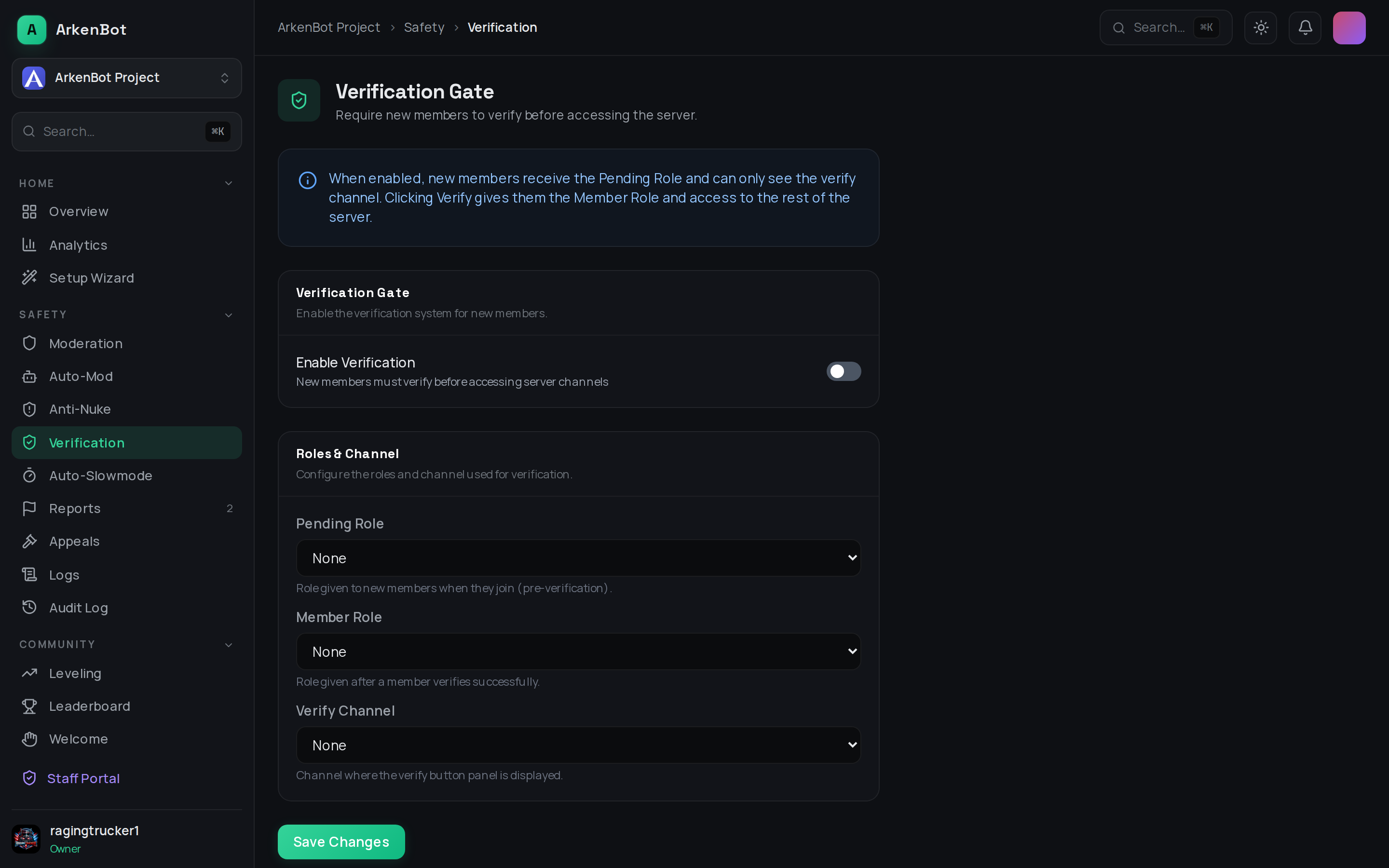
- Go to Dashboard → Verification Gate (under Moderation in the sidebar)
- Enable the toggle
- Configure three things:
- Pending Role — assigned on join, restricts access
- Member Role — assigned after verification, grants access
- Verify Channel — where the verify button panel is shown
- Click Save Changes
The bot needs Manage Roles permission, and its role must be above both the Pending Role and Member Role in the role hierarchy.
The bot also needs View Channel, Send Messages, and Embed Links in the Verify Channel — the verify button panel is posted there automatically when you save. Verify channels are often locked down for members, so make sure the bot has an explicit permission override.
Discord Channel Permissions
For the gate to work you need to set up channel permissions in Discord:
- Pending Role — deny View Channel on all regular channels; allow View Channel + Read Message History on the verify channel only
- Member Role — allow View Channel on all regular channels
A quick way to achieve this is to set your server's default role (@everyone) to deny all access and use the Member Role to grant it.
Tips
- Name the verify channel something clear like
#verify-hereor#start-here - Add a welcome message in the verify channel explaining server rules before the verify button
- Combine with the Welcome Messages feature to greet members after they verify