Ticket System
Full-featured support ticket system with panels, staff controls, transcripts, SLA warnings, ratings, canned responses, and a dashboard portal.
Setup
Install the Ticket System addon from the Addon Manager, then go to Tickets in the sidebar.
Creating a Panel
A panel is a button-based embed posted in a channel. Members click the button to open a ticket.
Use /ticket-setup panel create with these options:
| Option | Required | Description |
|---|---|---|
name | Yes | Panel name (internal label) |
description | No | Text shown in the panel embed |
emoji | No | Button emoji (e.g. 🎫) |
button_label | No | Button text |
button_color | No | Button color (blurple, grey, green, red) |
category | No | Category where ticket channels are created |
log_channel | No | Channel to post transcripts |
staff_role | No | Role that can manage tickets |
max_tickets | No | Max open tickets per user |
After creation, deploy the panel to a channel with /ticket-setup panel deploy.
Ticket Commands
All ticket management is done with /ticket subcommands inside an open ticket channel:
| Subcommand | Description |
|---|---|
close [reason] | Close the ticket |
claim | Claim the ticket as your own |
unclaim | Release your claim |
reopen | Reopen a closed ticket |
transfer <staff> | Transfer ownership to another staff member |
add <user> | Add a user to the ticket |
remove <user> | Remove a user from the ticket |
rename <name> | Rename the ticket channel |
priority <level> | Set ticket priority (low/medium/high/urgent) |
tag <action> <tag> | Add or remove a tag |
note <text> | Add a private staff note (visible to staff only) |
notes | View all staff notes (ephemeral) |
info | Show ticket info (priority, tags, claim status) |
transcript | Generate and send the transcript now |
respond | Use a canned response |
AI Triage
Run /triage inside an open ticket to get a private (ephemeral), staff-only triage. The bot reads the ticket's reason, form answers, and conversation so far, and returns:
- Summary — a sentence or two describing the user's issue
- Urgency — a colour-coded low / medium / high estimate
- Suggested reply — a friendly first response the staff member can adapt and send
The suggestion is only visible to the staff member who ran the command, and it runs on demand rather than automatically, so it stays fast and inexpensive.
/triage is a standalone command (not a /ticket subcommand) so you can restrict it on its own. To hide it from regular members, set it to your staff roles in Commands → Role Permissions. The bot also enforces staff-only at runtime regardless.
Staff-only, and it degrades gracefully when no AI key is configured. On the hosted ArkenBot it works out of the box; self-hosters need
GROQ_API_KEY(see Installation). Ticket content is sent to Groq to generate the triage — see the Privacy Policy.
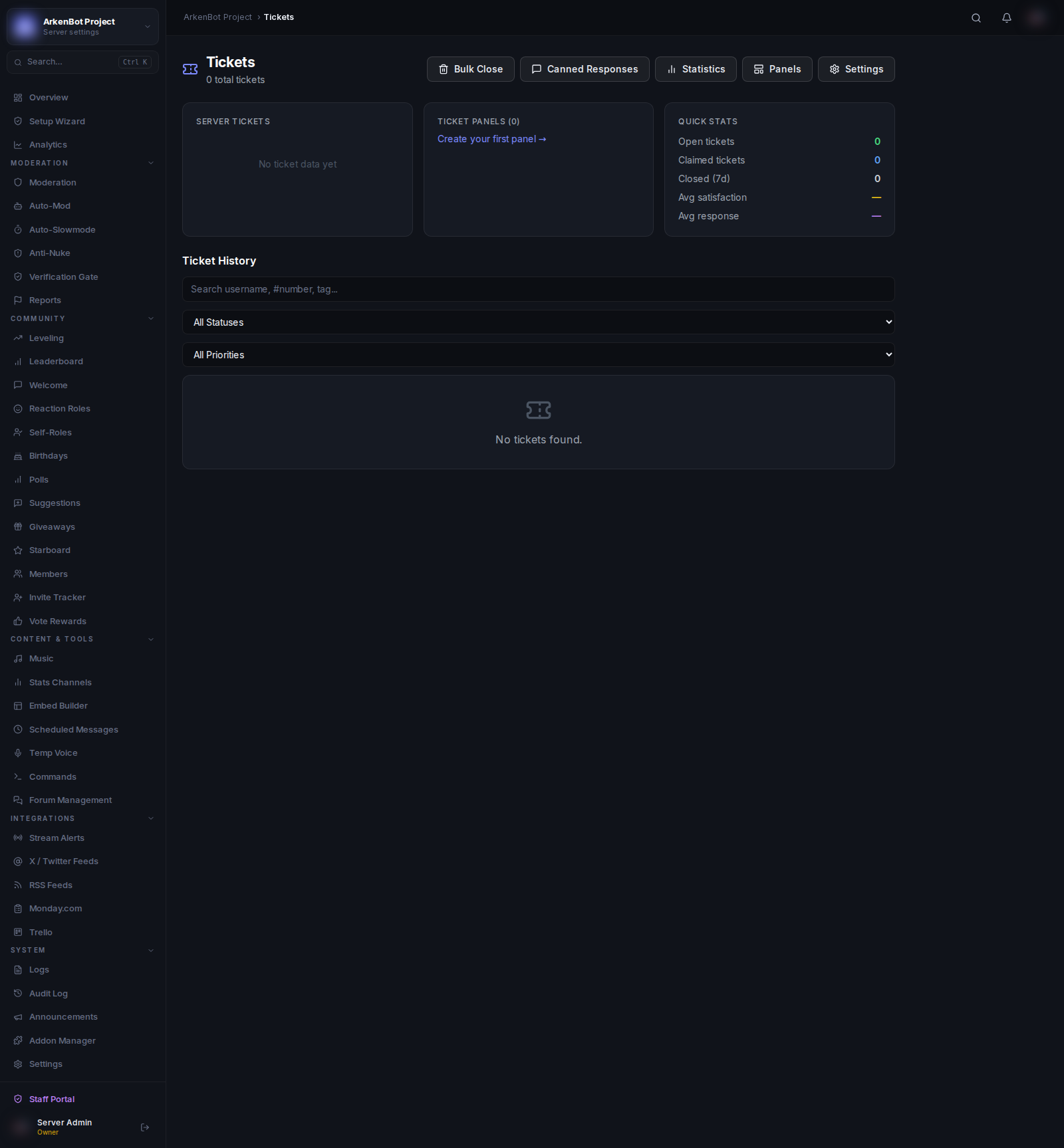
Dashboard Portal
The Tickets section in the sidebar provides:
- Open tickets — Active tickets with status, priority, and assigned staff
- Ticket detail — View full conversation thread and staff notes
- Canned Responses — Create pre-written replies staff can insert with one click
- Panels — Manage and redeploy panels
- Stats — Ticket volume, resolution time, and satisfaction ratings
- Settings — Global ticket config (transcripts, SLA, webhooks, blacklist)
Settings
Configure in Tickets → Settings:
| Setting | Description |
|---|---|
| Transcript Channel | Channel to archive transcripts |
| Staff Notify Channel | Channel for staff notifications |
| Staff Notify Role | Role pinged on new tickets |
| Rating Window | Minutes after close to request a rating |
| Auto Assign | Automatically assign tickets to available staff |
| Blacklisted Users | Users blocked from opening tickets |
| SLA Levels | Define warning thresholds (hours) with optional ping roles |
| Webhook URL | External webhook called on ticket events |
SLA Warnings
Set multiple SLA levels by hours. When a ticket exceeds the threshold, the bot pings the configured role with an alert. Useful for ensuring timely responses.