Game Server Admin
Control your game servers over RCON directly from Discord — run console commands, manage players, broadcast, save, restart, and schedule recurring actions.
Supports Minecraft, Palworld, ARK, Rust, Valheim, and 7 Days to Die. Every command requires the Manage Server permission, and RCON passwords are encrypted at rest.
Setup
Install the Game Server Admin addon from the Addon Manager, enable RCON on your game server (see per-game notes), then add it:
/gameadmin add
Add a game server. A private popup asks for the RCON password — it is never shown in the channel and is stored encrypted.
| Option | Required | Description |
|---|---|---|
name | Yes | Short name for the server |
game | Yes | Which game |
host | Yes | Server IP or hostname |
port | No | RCON/Telnet port (game default if omitted) |
Player & server commands
Each takes a server option (with autocomplete).
| Command | What it does | Extra options |
|---|---|---|
/gameadmin players | List online players | — |
/gameadmin say | Broadcast a message in-game | message |
/gameadmin kick | Kick a player | player, reason |
/gameadmin ban | Ban a player | player, reason |
/gameadmin unban | Unban a player | player |
/gameadmin save | Save the world | — |
/gameadmin stop | Stop / shut down the server | — |
/gameadmin exec | Run any raw console command | command |
/gameadmin list | List configured servers | — |
/gameadmin remove | Remove a configured server | server |
Control panel
/gameadmin panel
Post a button control panel for a server — a single message with buttons for Players, Save, Broadcast, Kick, Ban, and Stop. Broadcast/Kick/Ban open a popup for input. Every button is Manage-Server gated and audit-logged.
| Option | Required | Description |
|---|---|---|
server | Yes | Which server |
Audit log
/gameadmin logchannel
Log every RCON action — who ran what, success or failure, and the output — to a channel. Omit the channel to turn it off.
| Option | Required | Description |
|---|---|---|
channel | No | Audit-log channel (leave empty to clear) |
Scheduled actions
Run recurring actions automatically.
/gameadmin schedule
| Option | Required | Description |
|---|---|---|
server | Yes | Which server |
action | Yes | Save, Restart, or Broadcast |
every | Yes | Hourly, Every 6 hours, Every 12 hours, or Daily |
message | No | Message (required for Broadcast) |
Restart broadcasts an in-game warning, waits 60 seconds, saves, then stops — your host's auto-restart then brings the server back up.
/gameadmin schedules · /gameadmin unschedule
List scheduled actions (with their IDs and next-run times), or remove one by ID.
Dashboard
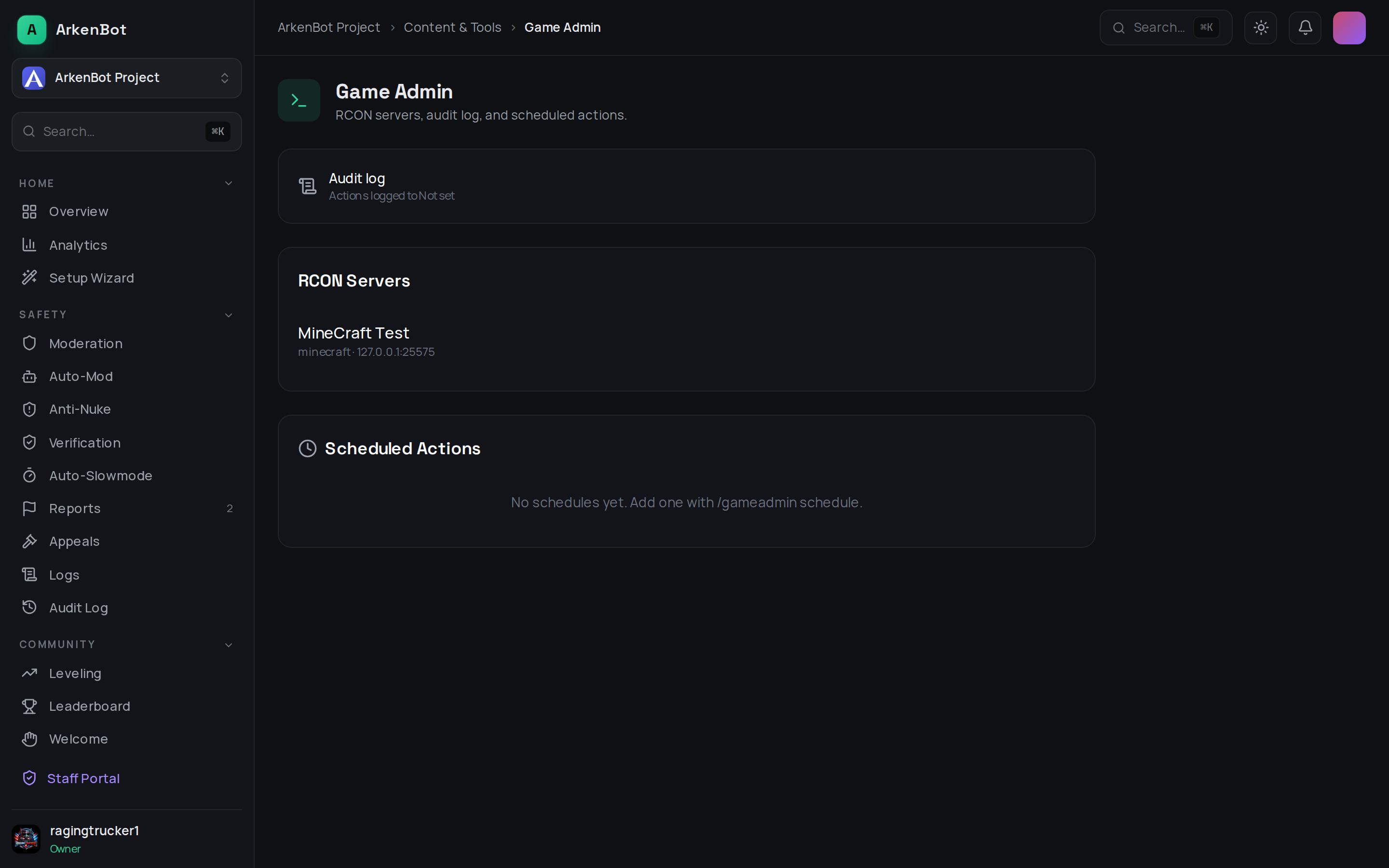
The Game Admin page in the dashboard (under Content & Tools) shows your RCON servers, the audit-log channel, and all scheduled actions.
Per-game notes
Enabling RCON
- Minecraft — in
server.properties:enable-rcon=true,rcon.password=...,rcon.port=25575. - Palworld — in
PalWorldSettings.ini:RCONEnabled=True,RCONPort=25575,AdminPassword="...", then restart the server. - ARK / Rust / Valheim / 7 Days to Die — enable RCON in the server's config and note the RCON port and password.
Palworld specifics
Palworld's RCON is finicky, and the bot smooths over the quirks for you:
- Kick/ban by name works. Palworld's
KickPlayer/BanPlayeractually require asteam_<steamid>identifier, not a player name. The bot resolves an online player's name to that identifier automatically. You can also pass a bare SteamID or thesteam_…form directly. To unban an offline player, pass the SteamID directly (they won't appear in the online list). - Reply-bearing commands like
/gameadmin playerswork even though Palworld doesn't send the usual RCON completion packet.
Game Server Status vs. Game Server Admin: Game Server Status reads status and player counts (no RCON needed); Game Server Admin controls the server over RCON. They pair well — the
/server graphembed links to/gameadmin panelfor the same server.